Skip to content

How it works

Every job in ParkOS, step by step

Short steps with real screens. Pick a job from the list.

Get started

In the app

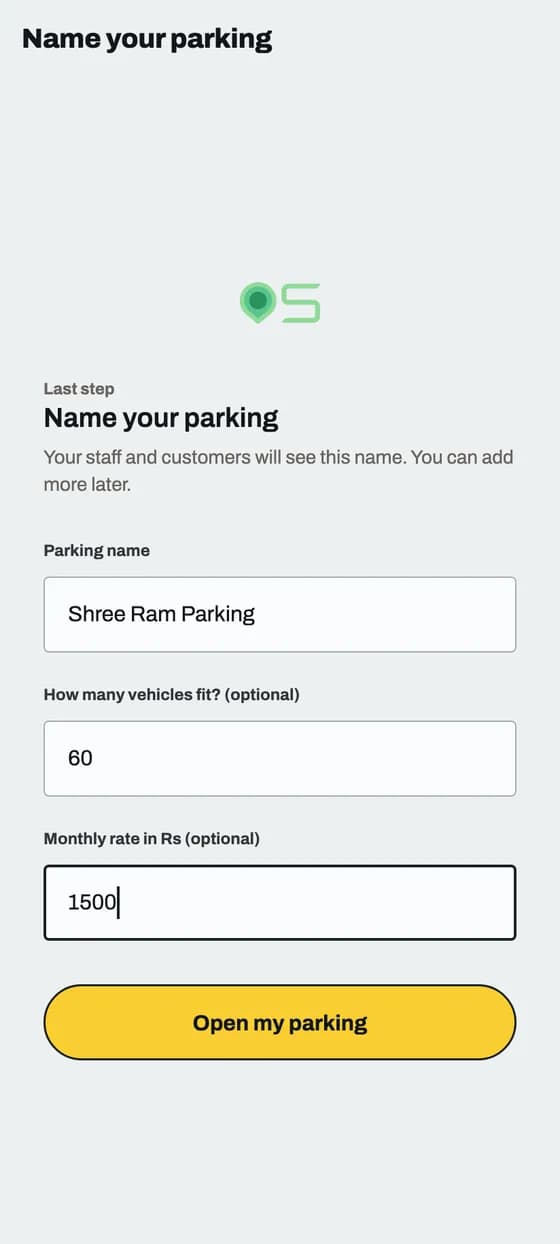
Sign up and add your parking

You only do this once. It takes about 10 minutes.
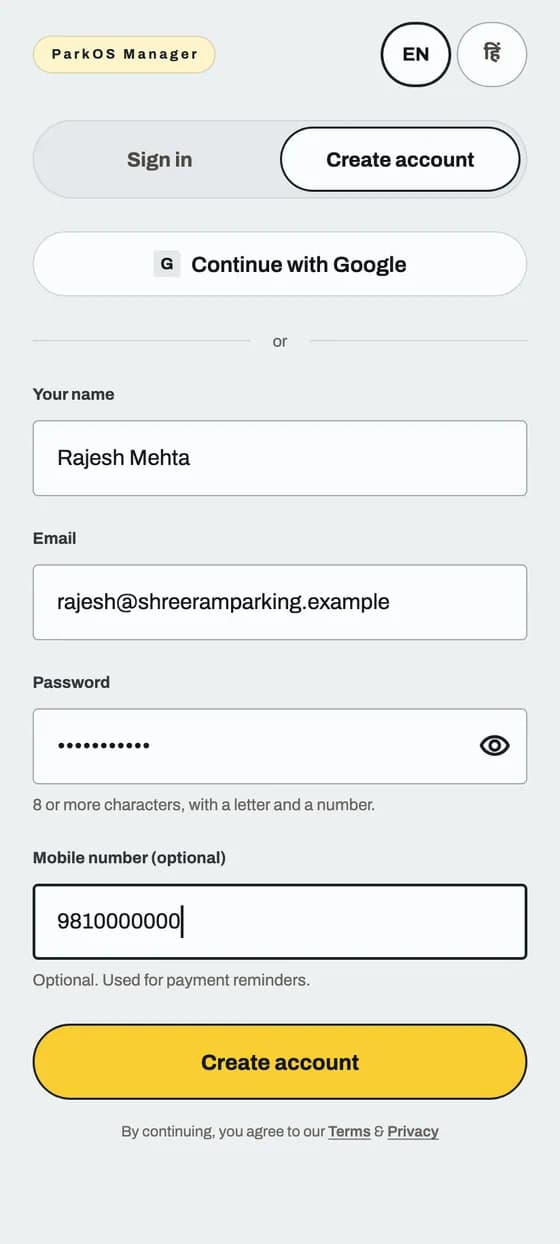
Sign up and add your parking: screen 1 of 2

Good to know

  • No email after 2 minutes? Check Spam, then tap Send the code again.
  • You can tap Continue with Google instead of typing a password.

In the app

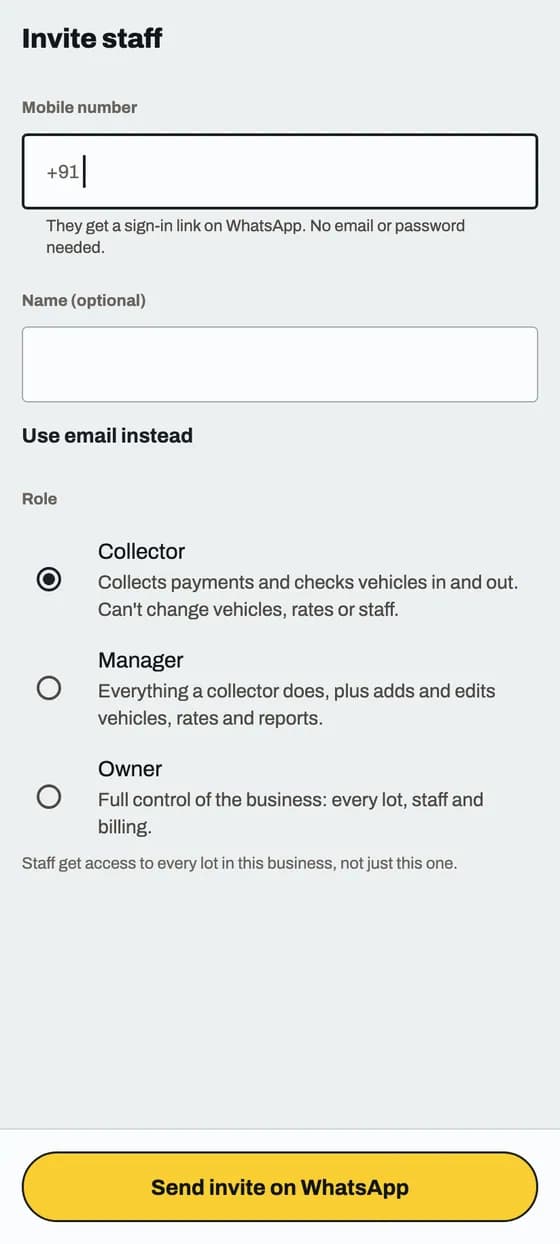
Add your staff

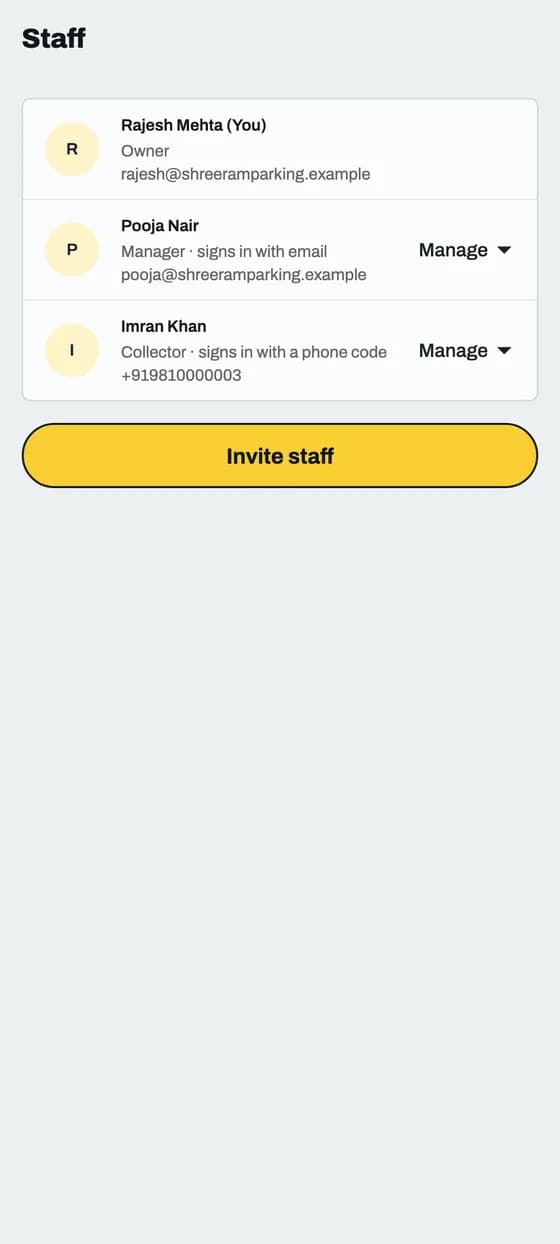
Staff join with a link you send. They do not sign up on their own.
Add your staff: screen 1 of 2

Good to know

  • Parking admin is the Owner and can change everything. Parking staff is a Manager, who runs the day, or a Collector, who works the gate.
  • They tap the link, install ParkOS and join. The link works once, for 7 days.

In the app

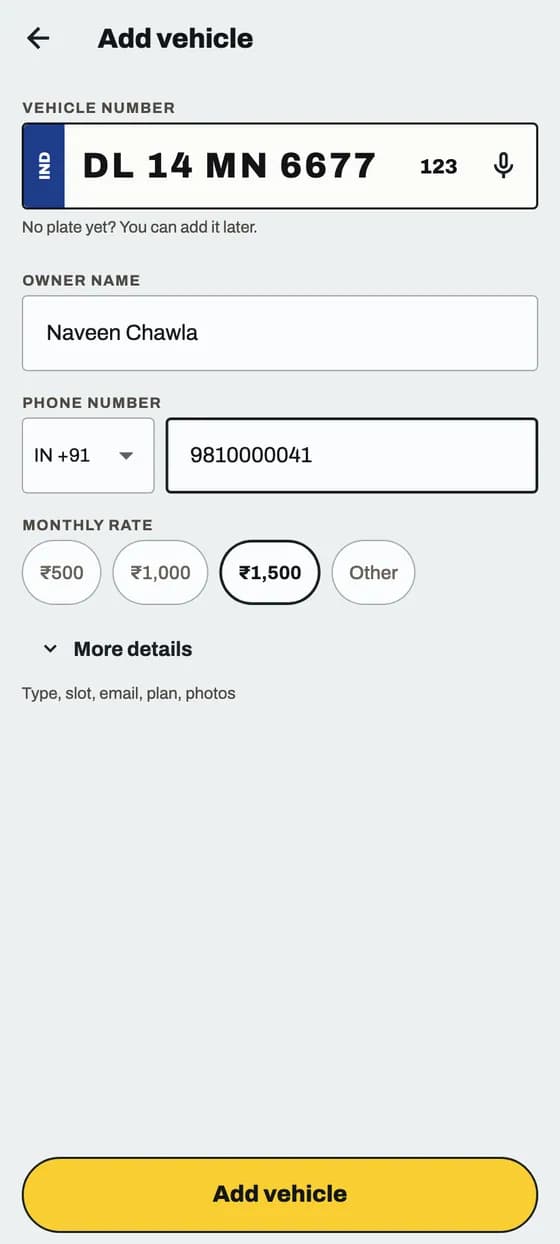
Add a vehicle

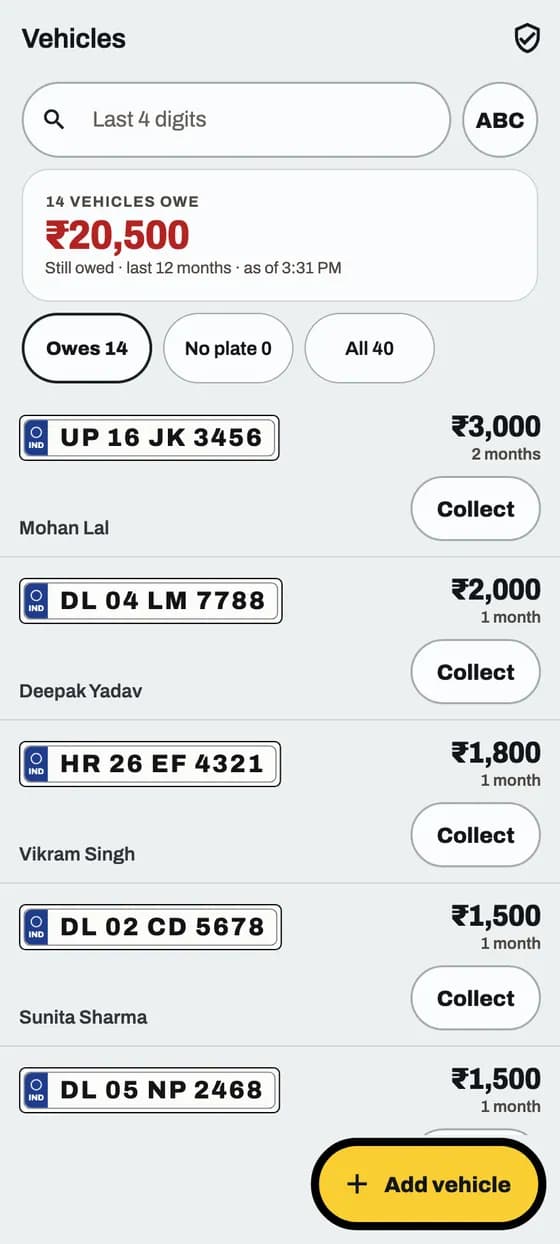
A vehicle is one monthly customer: a plate, a name, a phone number and a monthly amount.
Add a vehicle: screen 1 of 2

Good to know

  • A plate can be on only one vehicle.
  • A Collector cannot save a vehicle. Ask a Manager or the Parking admin.

In the app

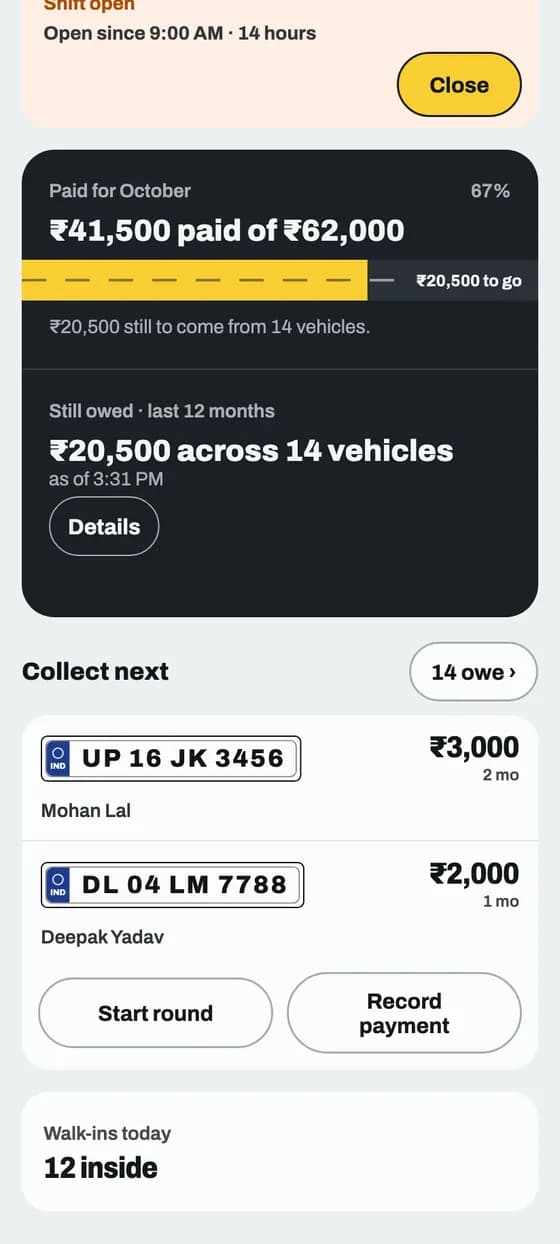
Read your Home screen

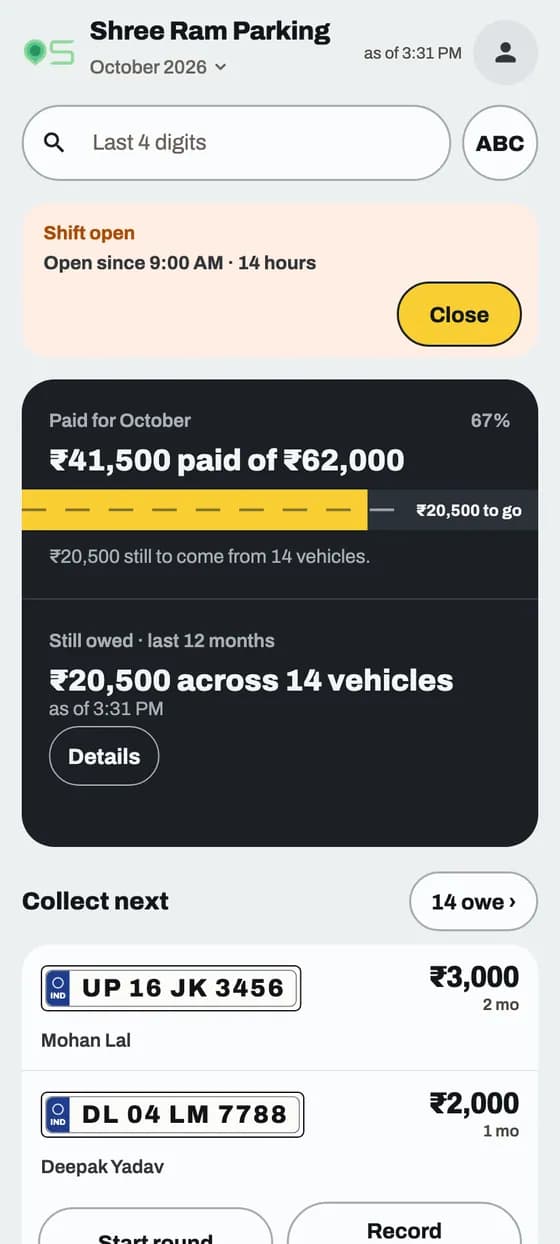
One look shows how the month is going and who to collect from next.
Read your Home screen: screen 1 of 2

Collect money

App and website

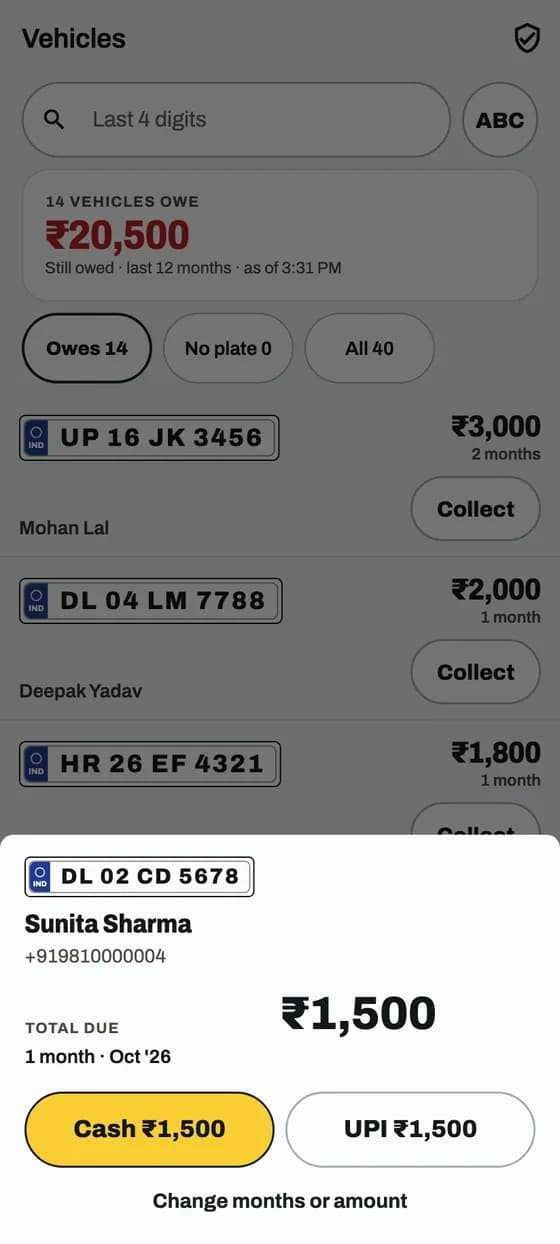
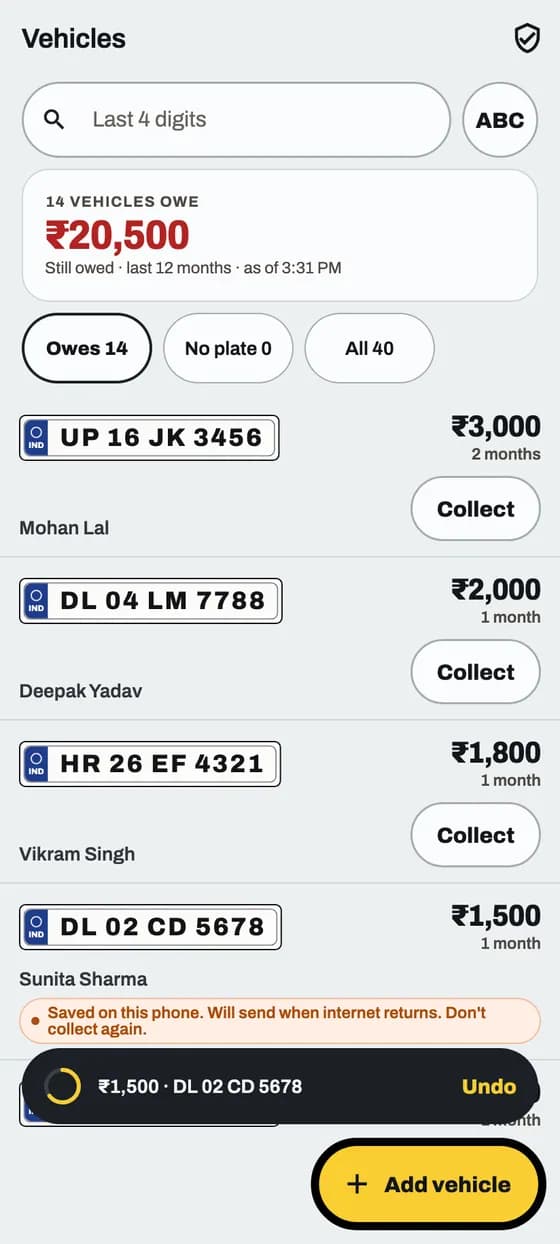
Collect money from a vehicle

One tap for cash. Tapped by mistake? You can undo it.

Collect money from a vehicle: screen 1 of 4

Good to know

  • No internet? It still works. The payment is sent later.
  • Too late to undo? Open the vehicle, tap History and refund it.

App and website

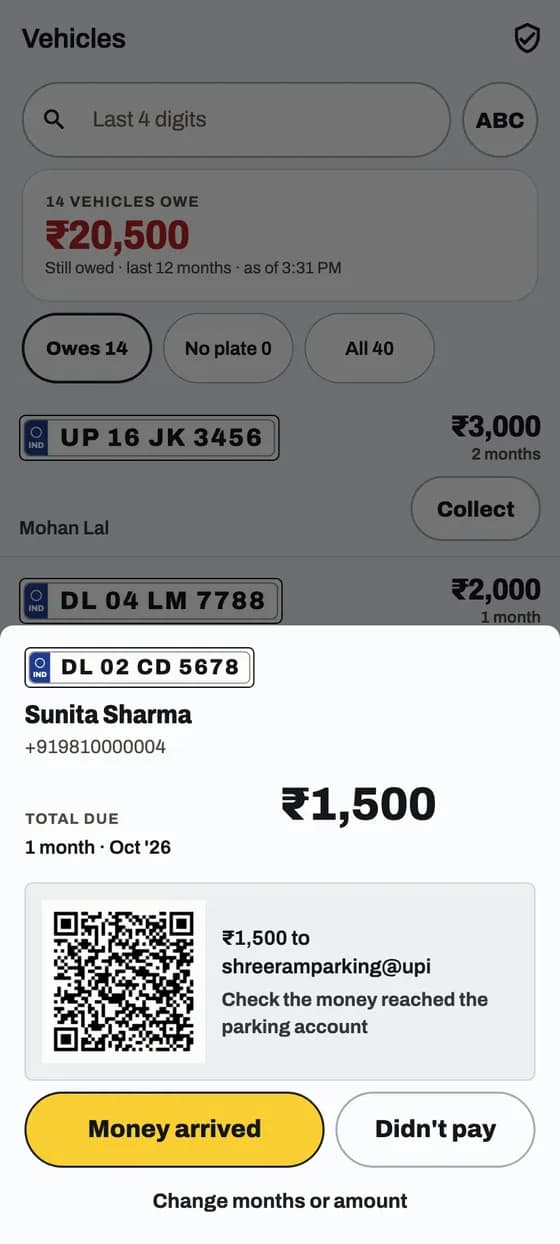
Collect money by UPI

Show a QR. You confirm only when the money reaches your account.

Collect money by UPI: screen 1 of 3

Good to know

  • No money? Tap Didn't pay. Nothing is recorded.
  • A customer showing payment done on their phone is not proof. Check your own app.

App and website

Collect more than one month, or just one

Pick the months you are collecting now. What is left stays owed.

Collect more than one month, or just one: screen 1 of 2

Good to know

  • The rest stays owed and shows on the vehicle.
  • Paying for a past month? Use Home, then Record payment.

App and website

Add an extra charge

A late fee or damage. It adds to what the vehicle owes.

Good to know

  • Untick a charge to leave it for later.
  • The Parking admin or a Manager can add a charge. Only the Parking admin can delete one.

App and website

Give a receipt

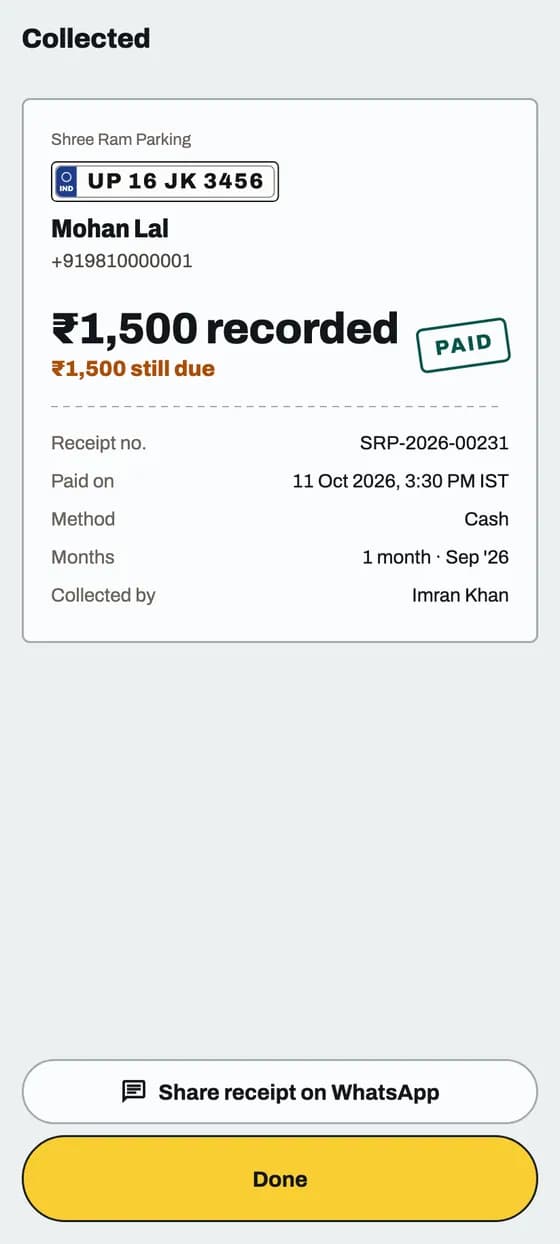
Every payment gets a numbered receipt. Send it on WhatsApp.
Give a receipt: screen 1 of 1

Good to know

  • Need an old receipt? Open the vehicle, tap History, then the receipt icon.

App and website

Delete a payment collected by mistake

The money comes out of your totals and the vehicle owes it again.

Good to know

  • Only the Parking admin can delete a payment.
  • Paid online? Use Refund instead.

Your vehicles

App and website

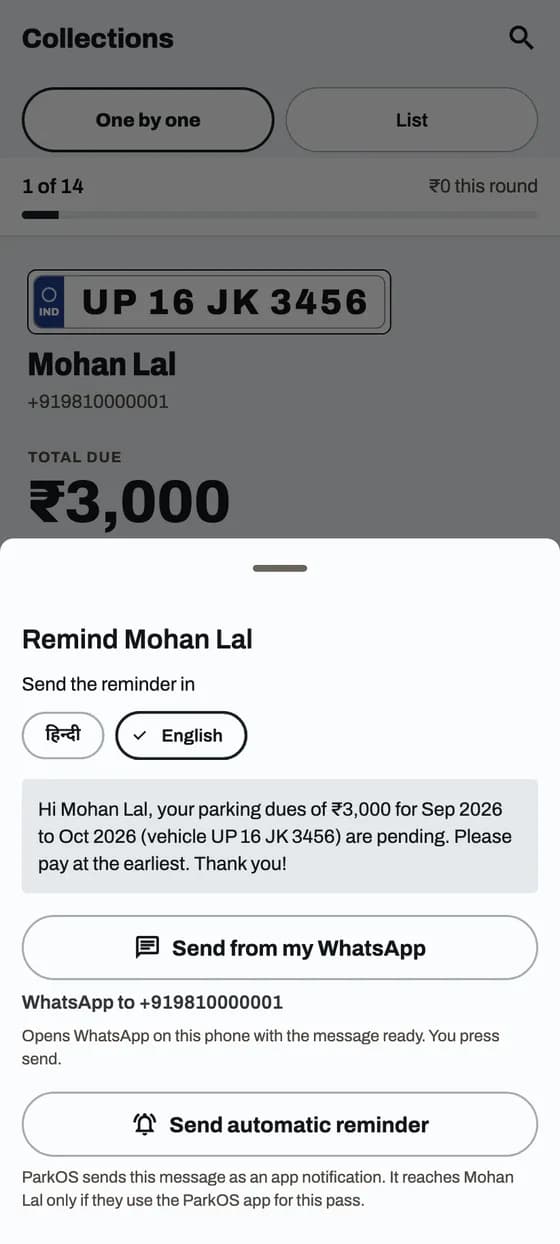
Remind a customer on WhatsApp

A polite message with the amount due, in English or Hindi.
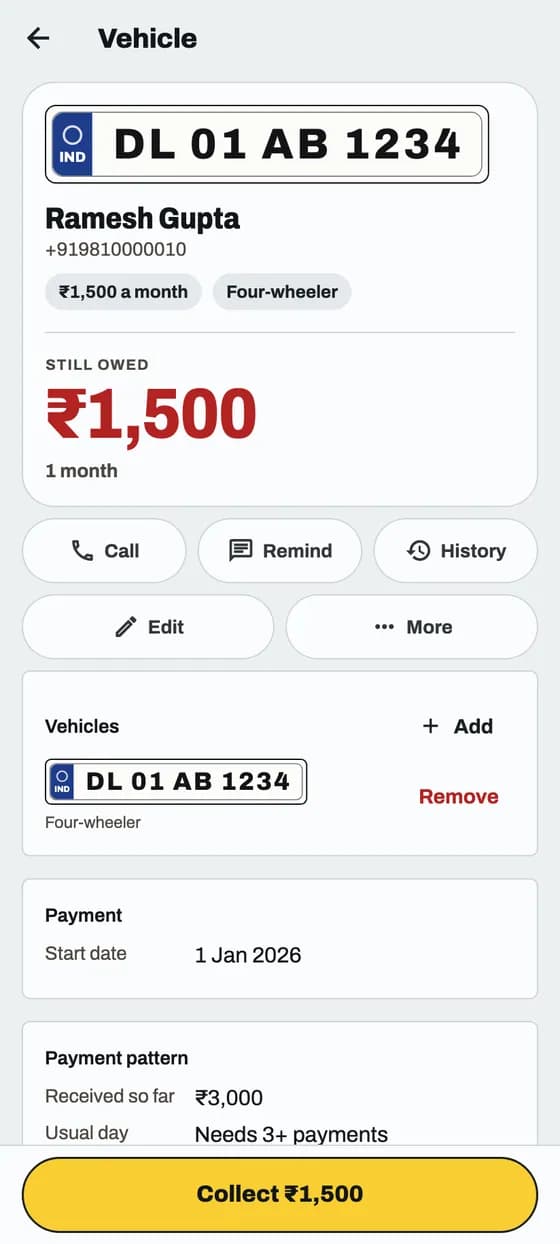
Remind a customer on WhatsApp: screen 1 of 2

Good to know

  • ParkOS also reminds overdue customers by itself, at most once every 3 days.
  • Send automatic reminder sends an app notification instead. It reaches customers who use the ParkOS app.

App and website

Bring back an old vehicle

A vehicle you end moves to Old. Its history stays and it never shows in dues.

Good to know

  • Only the Parking admin or a Manager can reactivate. A Collector can only look.
  • In the app the button is Change end date and shows only on active vehicles, so reactivate first. On the website it shows on old vehicles too.

Daily parking

In the app

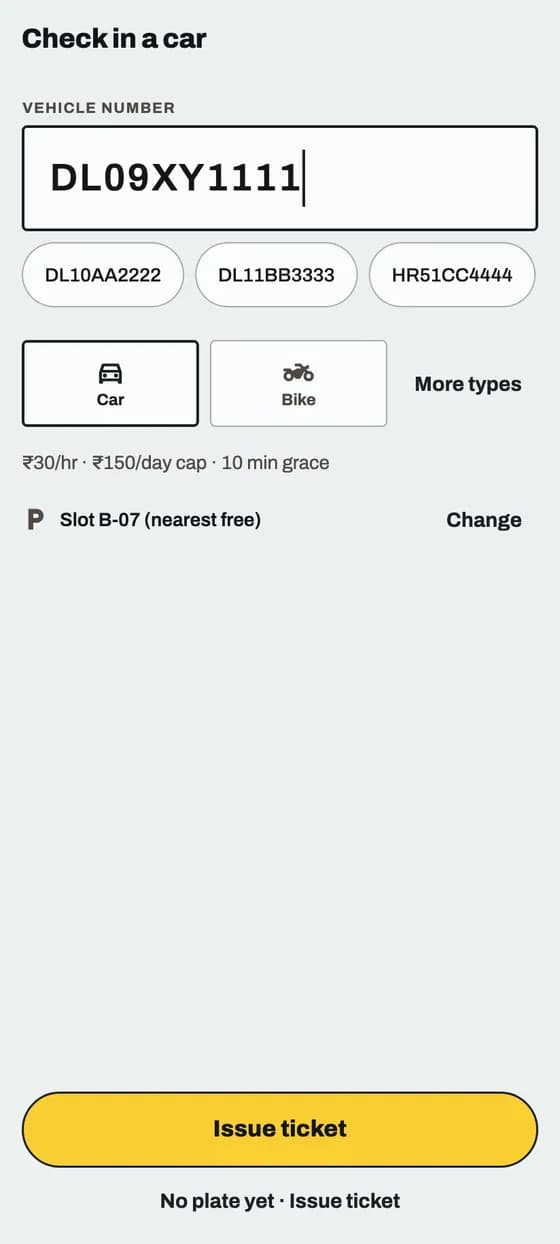
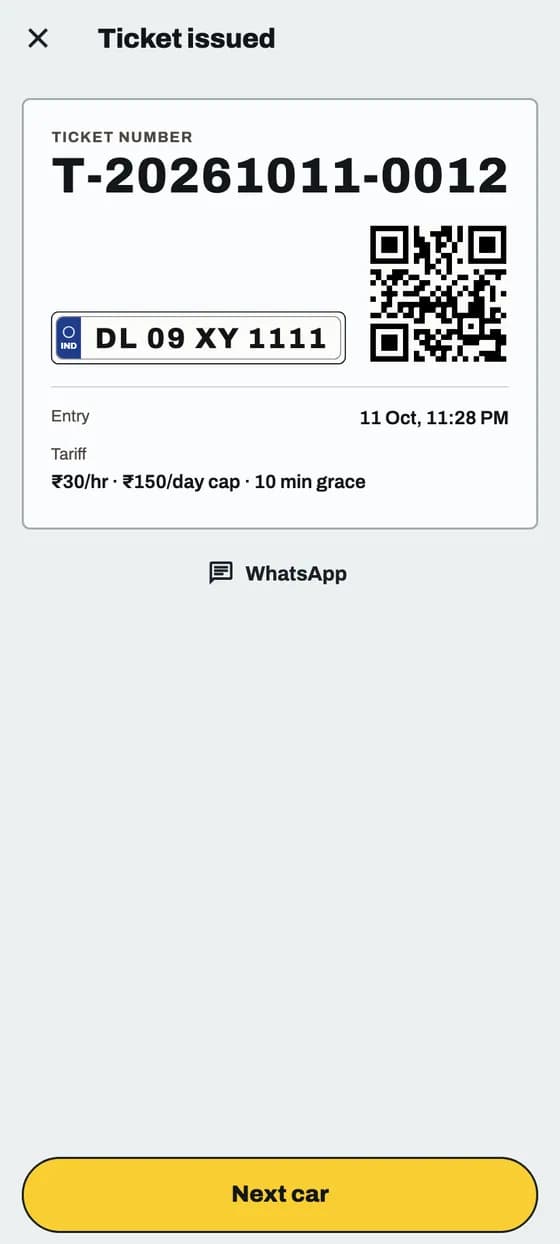
Check a car in

Make a ticket in a few taps. The car shows on Daily with a live timer.
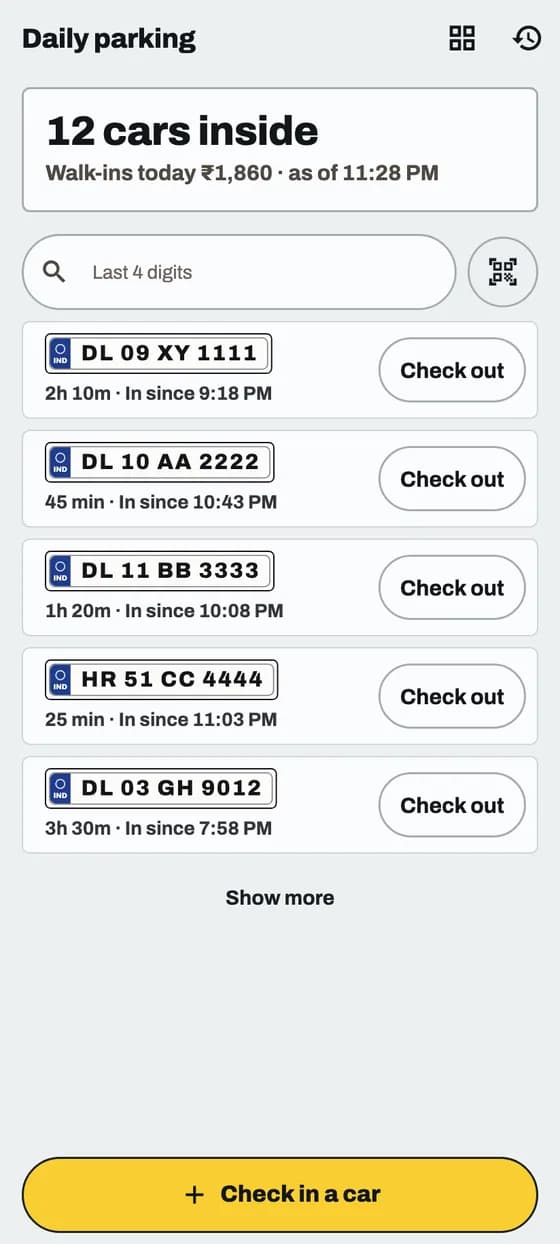
Check a car in: screen 1 of 3

Good to know

  • No plate yet? Tap No plate yet · Issue ticket.
  • No internet? The ticket is saved on the phone and sent later.

In the app

Check a car out and collect

ParkOS works out the fee from your prices. You take the money.
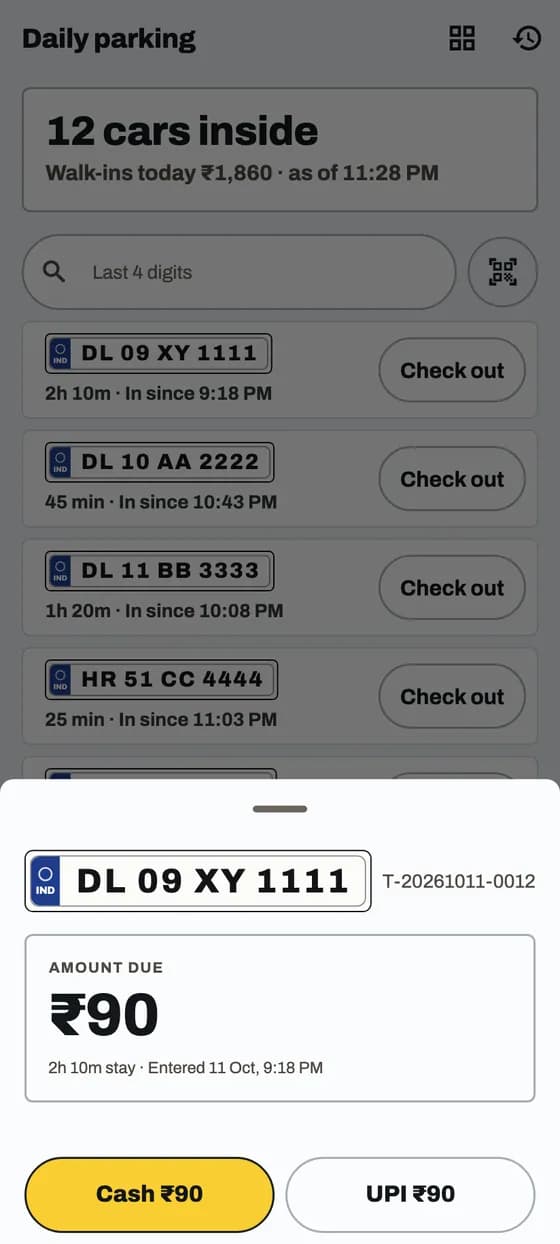
Check a car out and collect: screen 1 of 2

Good to know

  • Set your daily prices first. Without them ParkOS cannot work out a fee.
  • Driver lost the ticket? Find the car by its plate or ticket number.

Money and staff

In the app

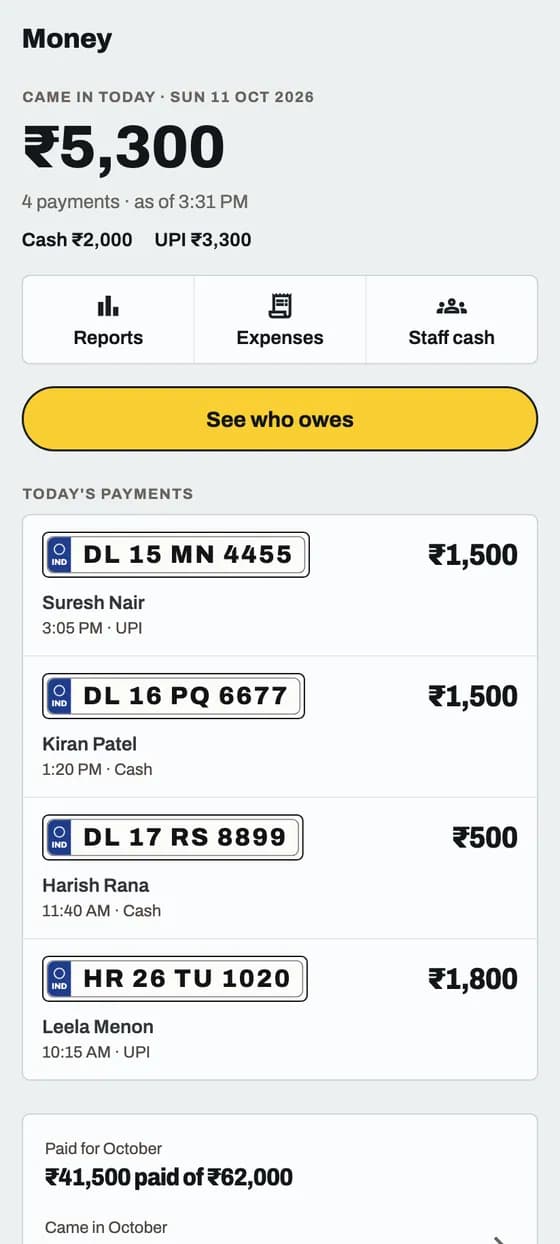
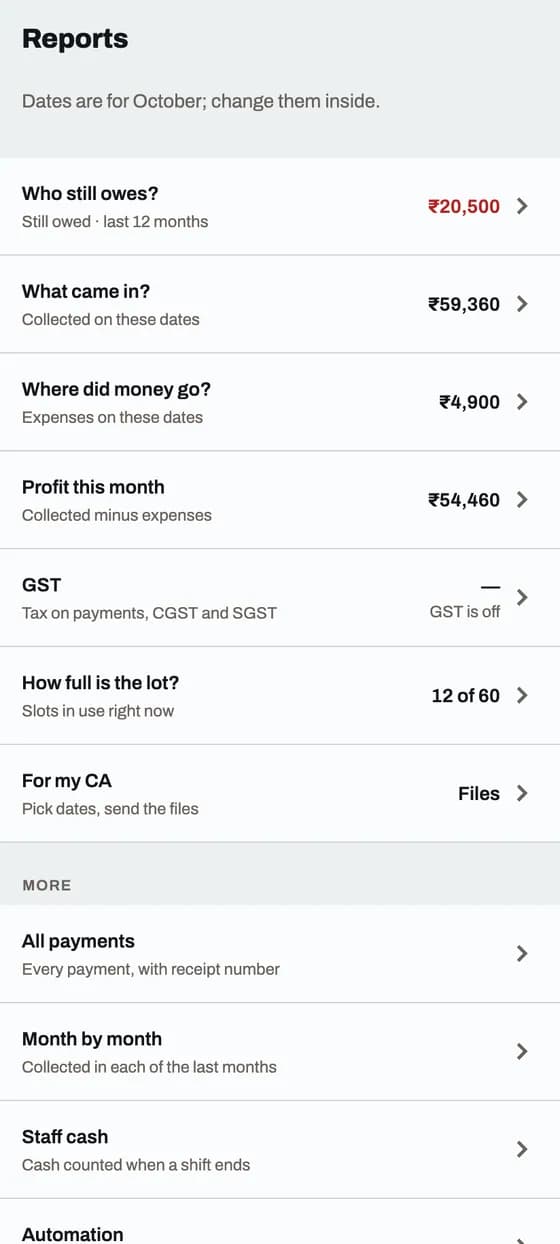
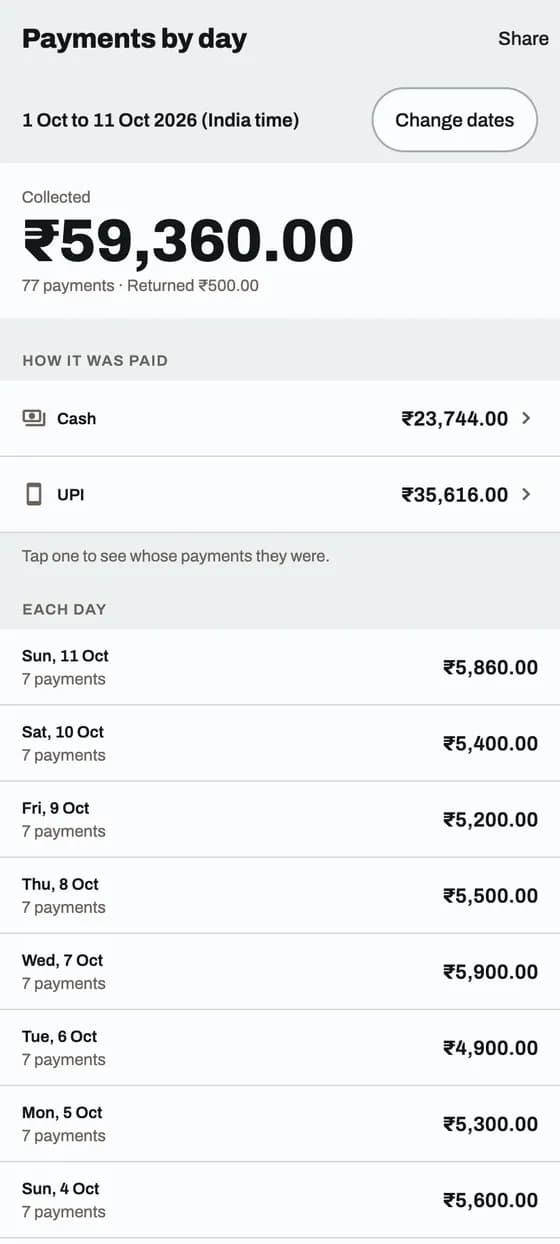
See your money and reports

Three words you will see. Each one says exactly what it counts.

See your money and reports: screen 1 of 4
Paid for
Money that settles this month's bills. Walk-in fees are not in it.
Came in
All money received, for anything. Monthly payments and walk-in fees, Cash and UPI.
Still owed
Unpaid bills from the last 12 months, added together.

App and website

See who collected each payment

Every payment shows the name of the person who took it.

Good to know

  • Online payments say Paid online.
  • Every receipt also shows Collected by.
  • Only the Parking admin and Managers can use the Collected by filter.

In the app

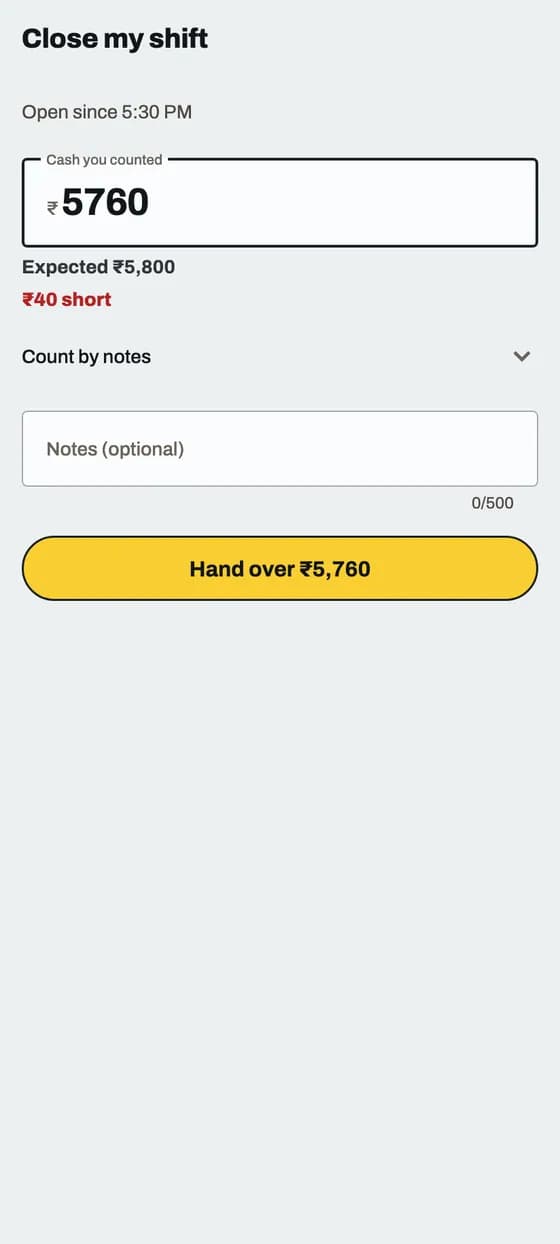
Close your shift

Count the drawer at the end of duty. ParkOS tells you if the cash matches.

Close your shift: screen 1 of 2

Good to know

  • Start of duty: open Money, then Staff cash, tap Open shift and type the cash already in the drawer.
  • A Collector finds Staff cash under Money, Reports, then More.
  • Count only cash. UPI money is not in the drawer. A closed shift cannot be reopened.

Help

In the app

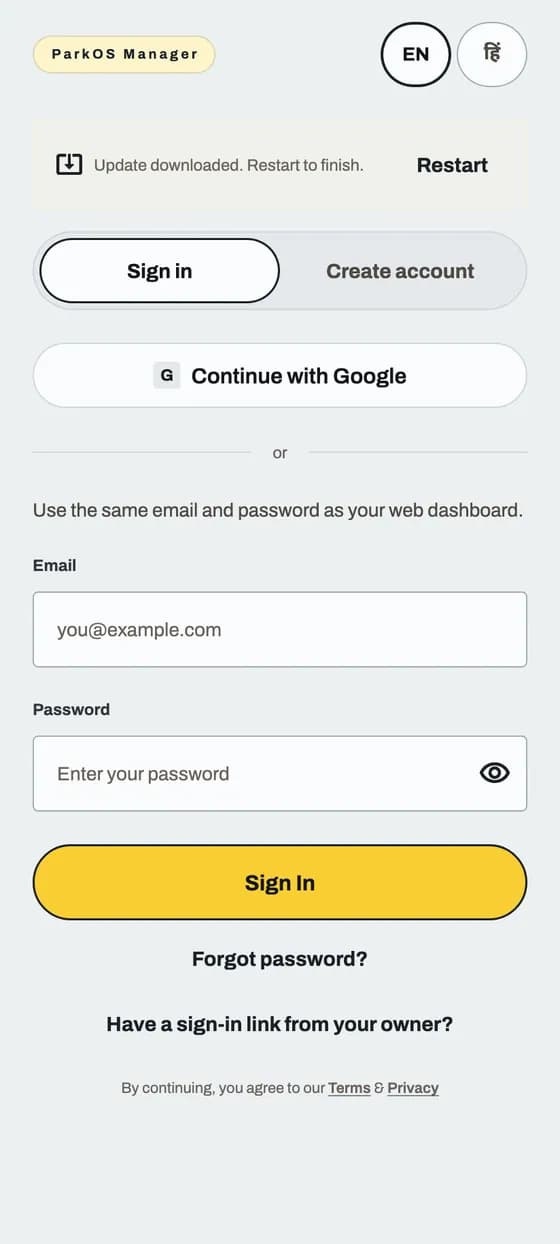
Keep the app up to date

The app updates itself. You only restart it when it asks.
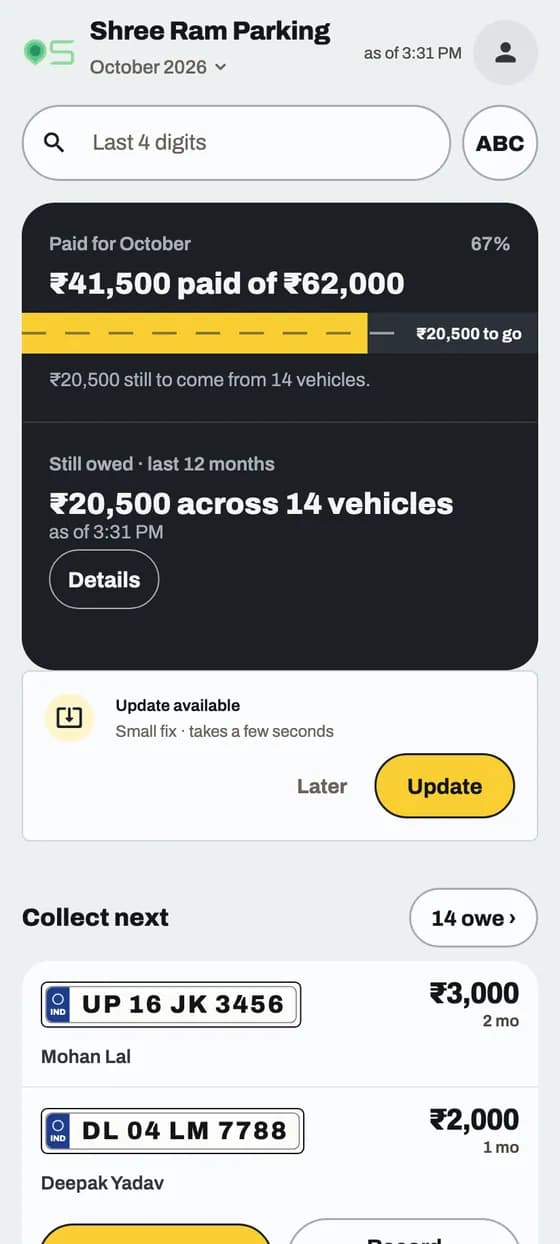
Keep the app up to date: screen 1 of 3

Good to know

  • Updates never delete your data. Money saved on the phone stays safe.
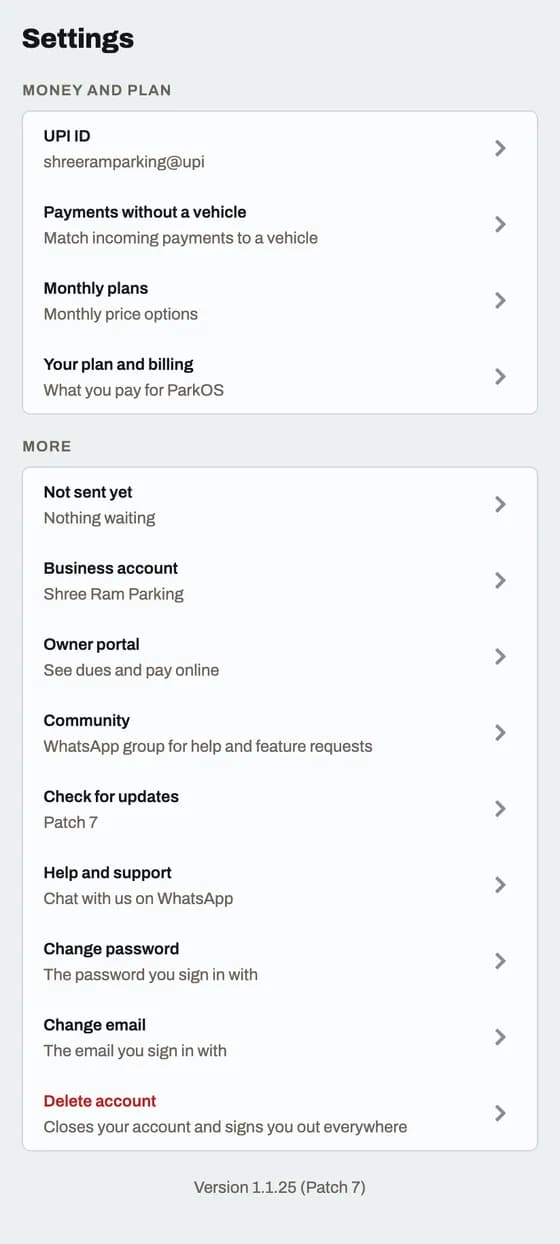
  • Tell us your version when you ask for help. Press and hold the version line to copy it.

App and website

Get help from a person

Real people answer on WhatsApp: +91 70113 40142.

Get help from a person: screen 1 of 1
Message us on WhatsApp

Your turn

Ready to try it on your parking?

Free for up to 10 vehicles. No card needed.
WhatsAppStart free